Creating a User ID
You might want to create an additional user ID (set of login credentials) for one or more applications.
-
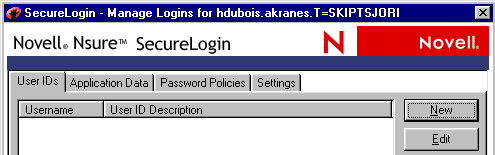
Right-click the SecureLogin icon on the task bar, then click Manage Logins.
-
Click User IDs > New.
-
Type a description for the user ID, then click OK.
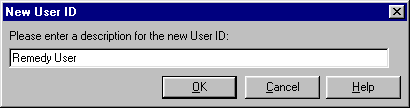
Typically, enter the application name.
-
Type login variables.
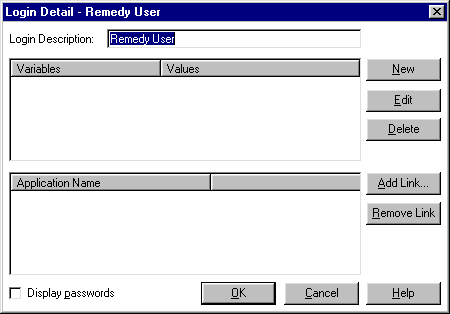
Entering a Name in the Variables ColumnTo enter a name in the Variables column, click New, type a name (for example, Username), then click OK.
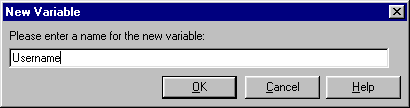
"Username" is a typical entry. However, it's a good idea to use the text that appears on the login panel. For example, text for a Windows application might be User Name or User ID, but text for a Web page that logs you in to a bank might be Account.
Entering a ValueThe entry in the Variables column requires a matching value. In the Editing Username dialog box, type the value (for example, the actual username), then click OK.
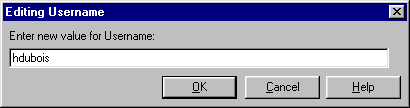
Add other variables (for example, Password) and matching values (for example, the actual password) as required in the login panel.
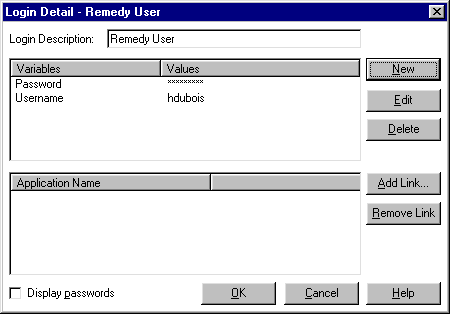
If you have already saved values, you can edit them. For example, to change a password, click the Password variable, click Edit, then type and confirm the new password.
-
Link the user ID to an application.
Password-protected applications require login credentials. A user ID contains login credentials. SecureLogin can automatically log you in to an application after you link the correct user ID to the password-protected application.
-
Click Add Link.
-
Save the variables and values for the login (user ID), along with the link to the application, by clicking OK.
-
Save the data to cache by clicking OK again.
For additional information on user IDs, applications, and password policies, click the Help button that displays in SecureLogin on your workstation.
-